Se rendre au contenu
  • Se connecter
  • EN FR
Goshop Energy
  • Our Solutions
    • Industries
    • Homes, Shops & SMEs
    • Schools, Clinics & Communities
    • Reseller and Installers
    Our solutions Solar Energy System Energy Storage Gensets Water Pumping Lightning - Protection Projects
    Profitability Simulator Products and brands Work with GoShop Maintenance
    Our solutions Kits solaires Pompage Solaire Générateurs Domestiques Projects eMobility
    Configurateur /Dimensionnement Conseils pratiques Support Technique
    Solutions Kits solaires Pompage Solaire Générateurs Domestiques Projects
    Mini Réseaux Activités génératrices de revenus GoShop Academy
    Partner Program Brands GoShop Academy
    Find a Partner Warranty
  • Our Products
    Icon Pico and Portable Solar Kits Pico and Portable Solar Kits
    Icon Solar Panels and Kits Solar Panels and Kits
    Icon Solar Batteries and Kits Solar Batteries and Kits
    Icon Solar Pumps and Kits Solar Pumps and Kits
    Icon Generators Generators
    View all products
  • Our Projects
  • About us
  • Help
  • 0
  • Contact us

    Social Media

    Cliquez ici pour configurer vos réseaux sociaux
Goshop Energy
  • 0
    • Our Solutions
      • Reseller & Intallers
      • Homes, Shops & SMEs
      • Industries
      • Schools, Clinics & Communities
    • Our Projects
  • Se connecter
  • EN FR
  • Contact us

    Social Media

    Cliquez ici pour configurer vos réseaux sociaux
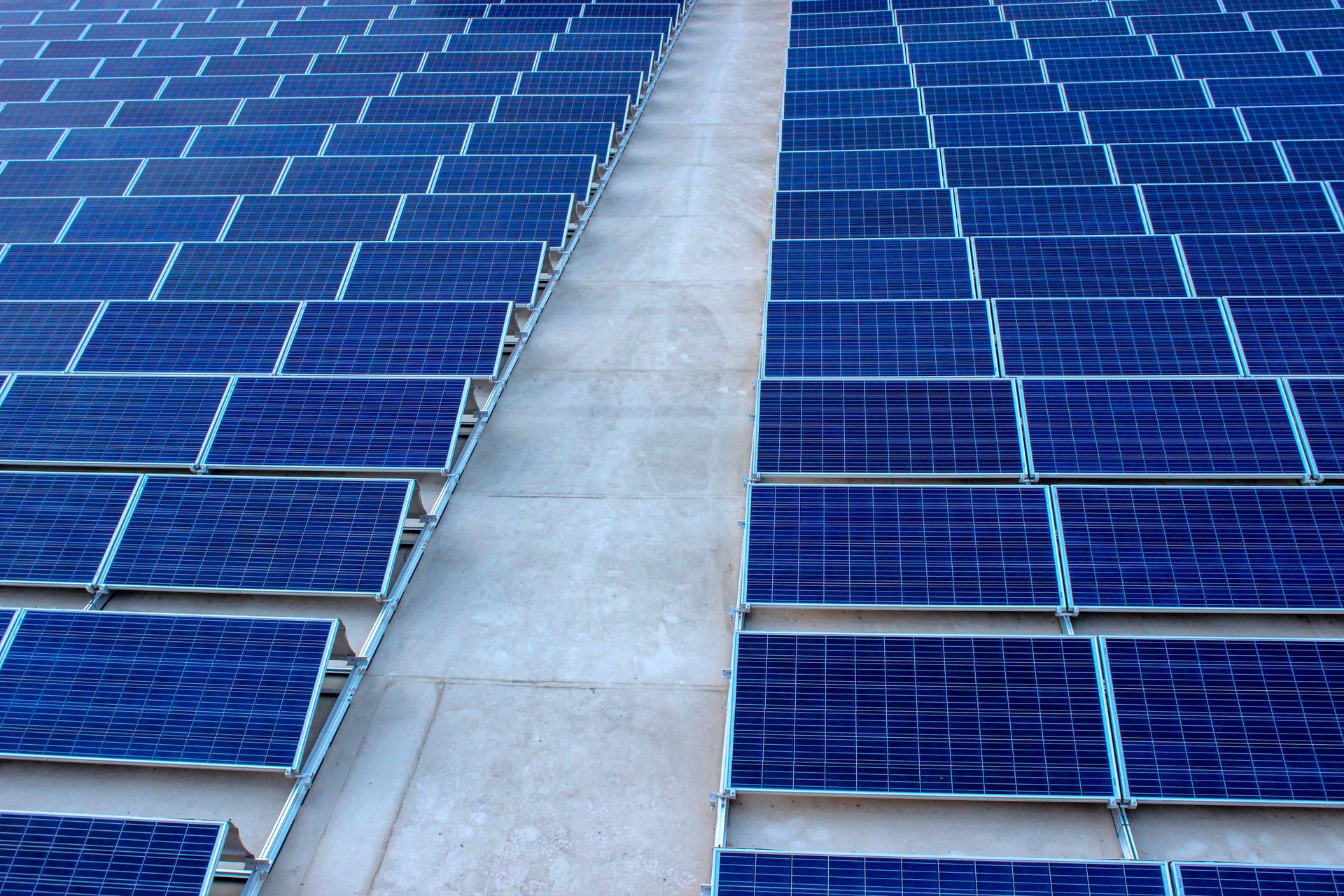
solar panels
  1. Cours
  2. The Cerbo GX
  3. Chapter 5 - Quiz
Nav
Accueil └The Cerbo GX └Chapter 5 - Quiz

The Cerbo GX

0 %

Achevé

Contenu du cours
  • Introduction
    • Introduction - Doc
    • Introduction - Video
  • Chapter 1 - Overview
    • Chapter 1 - Doc
    • Chapter 1 - Video
    • Chapter 1 - Quiz 10 xp
  • Chapter 2 - Installation and commissioning of the Cerbo GX
    • Chapter 2 - Doc
    • Chapter 2 - Vidéo
    • Chapter 2 - Quiz 10 xp
  • Chapter 3 - Access the Cerbo GX user interface
    • Chapter 3 - Doc
    • Chapter 3 - Vidéo
    • Chapter 3 - Quiz 10 xp
  • Chapter 4 - Cerbo GX settings and updates
    • Chapter 4 - Doc
    • Chapter 4 - Video
    • Chapter 4 - Quiz 10 xp
  • Chapter 5 - VRM & Node-RED Portal
    • Chapter 5 - Doc
    • Chapter 5 - Video
    • Chapter 5 - Quiz 10 xp
  • Final Evaluation for Certification
    • Certification

Chapter 5 - Quiz

10 XP
Préc Suivant
Plein écran Partager
  • À propos
  • Commentaires (0)
Évaluation
0 0

Il n'y a aucun commentaire pour le moment.

Rejoindre ce cours
pour être le premier à laisser un commentaire.

1. To use VRM, you need at minimum:
A lithium battery and BMS A GX device connected to the internet A Carlo Gavazzi meter A 4G modem
2. VRM allows, via the remote console, to:
Replacing Cerbo GX Full remote access and configuration Disabling alarms Overcharging batteries
3. To link an installation to an account, you must enter:
The battery serial number The VRM ID of the GX device The router's MAC address The Bluetooth PIN code
4. If you are the first to add an installation to VRM, you become:
Read‑only user Default technician Administrator of that installation Without any rights
5. In "Installation data", the energy from the AC input corresponds to:
The PV energy produced The energy imported from the public grid The DC energy consumed The energy supplied by the batteries
6. Geofencing on VRM requires:
A Modbus meter A GSM connection A GX device with a connected USB GPS A VRM administrator account only
7. Node‑RED in the Victron ecosystem allows, among other things, to:
Automatically update Venus OS Create automation scenarios Completely replace VRM Disable GX alarms
8. In a Node‑RED flow, a Switch node is typically used to:
Create a graphical dashboard Compares values and routes logic Send an email directly Enable Venus OS Large
9. What does a "Communication surveillance" alarm mean?
The customer is speaking too loudly near the Cerbo GX. The Internet connection between the GX device and the VRM portal is down. The battery cable is disconnected. The solar panel is in the shade.
10. Why is it necessary to switch to the "Venus OS Large" version to use Node‑RED?
Normal version lacks features Because Node‑RED requires a larger screen. To increase the hardware warranty. To be able to connect more than 10 solar panels.
11. What is the name of the workspace where you drop nodes in Node‑RED?
A circuit. A Flow. A page. A script.
12. What happens if you delete an installation from your VRM account?
The batteries stop working. All historical data is permanently lost. The Cerbo GX resets to factory mode. Victron sends you an invoice.
13. What does the "Deploy" button in the top right allow you to do?
Restart the Cerbo GX. Save and activate flow changes. Send a test email. Delete all nodes.
  • Our Company
  • About us
  • Our offices
  • Our events
  • Our blog
  • Jobs
  • Our brands
  • Partner Program
  • Find a reseller
  • Support
  • Support form
  • Conditions of Sale and Warranty
  • GoShop Academy
  • Let's Connect
  • Facebook
  • LinkedIn
  • X
  • Youtube
  • Instagram

See how we can help you. Get in touch today.

Chat with us on WhatsApp

Get in touch

Or call +243 991 473 328
Goshop Energy Logo

© 2026 GoShop Energy. • Privacy Policy